S K Y T R O N I C S

Please Wait For Loading

Unit 29, 9 Powells Road Brookvale +61 2 8078 2271 sales@skytronics.com.au

Reach out to explore seamless integration of our products, please click here to set a meeting with a product expert and a team of engineers to facilitate your project requirements.

Welcome to the Dronemate Portal — your all-in-one command centre for planning missions, flying, and tracking drones live. This guide cuts through the noise and walks you through every feature step by step, using clear screenshots with annotated arrows so nothing is left to guesswork.


Arrow legend for image annotations

  • 🟢 Green arrows – Live system status and telemetry
    (GPS lock, battery level, link status, etc.)

  • 🟠 Orange arrows – User actions and controls
    (buttons like Save, Upload, Waypoint, Start Mission)

  • 🔵 Blue arrows – Map and flight visuals
    (waypoints, home point, take-off location, flight path)

  • White arrows – Interface indicators and general information
    (wind speed, temperature, system info, alerts)

📍 Page 1: Dashboard Overview

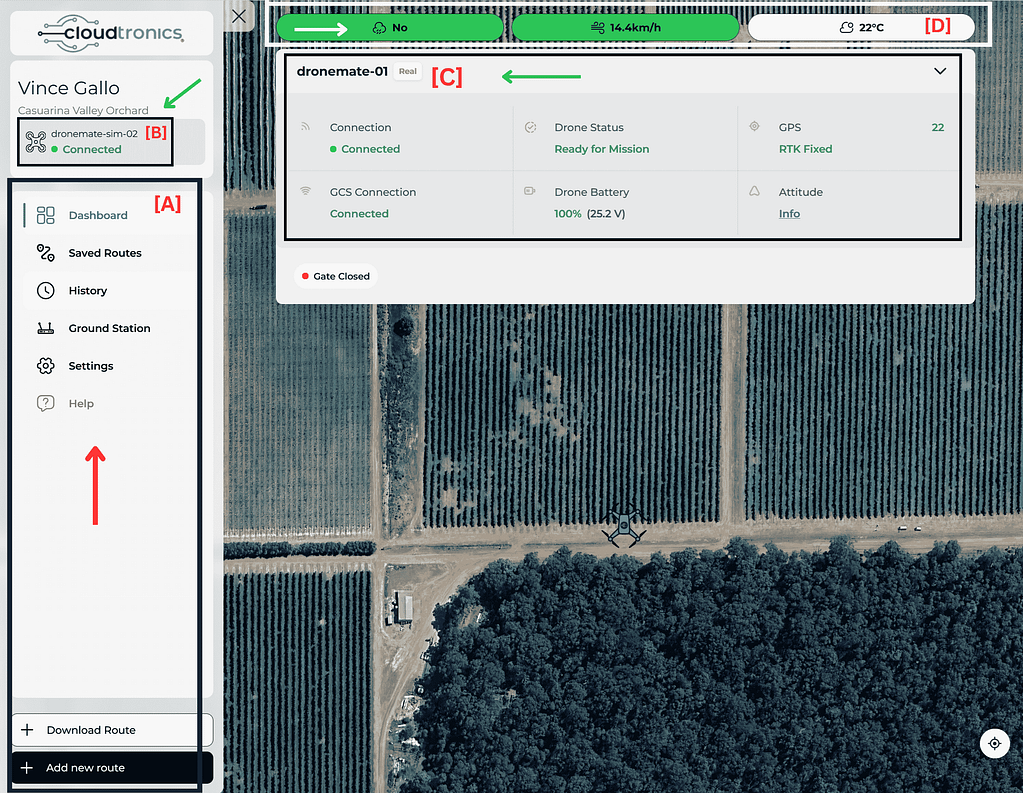
[A] Left Sidebar Menu

This is your main navigation panel.

Field Descriptions
Dashboard Live feed of connected drones. 
Saved Routes Stores flight paths for reuse. 
History Flight logs and telemetry data. 
Ground Station Control and monitoring interface. 
Settings Change preferences and connection settings. 
Help Access guides, support or FAQs. 
Download Route Download any created flight plan. 
Add New Route Start building a new route from scratch.

[B] Drone Selection Panel 


  • Displays all available drones (real or simulated). 
  • Green Dot = Active and Connected. 
  • Click to switch or activate different drones. 

[C] Drone Status Panel (Main Info Panel) 

Field Descriptions
Connection  Indicates drone is wirelessly linked to the portal. 
GCS Connection  Ground Control Station (GCS) link status – essential for issuing commands. 
Drone Status  “Ready for Mission” = all checks passed, ready to fly. 
Drone Battery  Real-time voltage + % charge. Minimum 90% is recommended. 
GPS  Shows number of satellite locks. RTK Fixed = centimetre-level precision. 
Attitude  Clickable. Opens roll, pitch, yaw details (drone orientation). 
Gate Status  Useful for automated missions that involve physical gates. 

[D] Top Indicators Bar

Field Descriptions
Internet Status Displays “Yes” or “No” based on connectivity. 
Wind Speed Useful for safety checks before flight. 
Temperature Current local weather condition. 

📍 Page 2: Route Planning Interface

[E] Route Tools Panel (Top Bar)


FeatureDetails
Takeoff Initiates flight sequence. Use only after setting waypoints. 
Waypoint Click to add multiple GPS points (hover path). 
Return Instantly returns drone to home/takeoff point. 
Save Save flight plan locally. 
Save & Upload Send plan to the drone for execution. 
Clear Delete all waypoints and reset the map. 
Altitude & Speed Customise drone height (m) and speed (m/s) per segment. 

[F] Flight Map Area

Feature Details
Takeoff Point Starting position (labelled “Takeoff”). 
Waypoints (1, 2, 3…) Marked flight route points. 
Path Lines
  • 🟢 Green = active flight segment. 
  • 🟠 Orange = upcoming flight segments. 
Terrain Following Toggle ON to keep drone at constant height above ground. 
Centre Re-centres map on drone. 
Add Waypoint Add more navigation points. 

[G] Altitude Profile Graph

Metric Purpose 
X-axis Waypoint numbers
Y-axis Drone’s height Above Sea Level (AMSL).
 
  • Useful to check altitude changes or spot risk zones (e.g., hills, trees). 

📍 Page 3: Live Flight View

[H] Live Flight Status Panel

Feature Details
Status Drone connection status. 
GPS RTK Number of satellites & lock type. 
Drone Battery Live voltage/percentage. 
GCS Connection Live command link. 
Gate Status Reflects current gate automation status. 
Return Button Trigger RTH (Return to Home). 

[I] Flight Stats (Bottom Centre)

Metric  Purpose 
Altitude (Relative) Current flying height from takeoff point. 
Speed up/down  Ascending/descending speed in m/s. 
Speed inflight Horizontal flight speed. 
Flight Time  Duration since takeoff. 
Distance to Next WP  How far drone is from the next waypoint. 
Distance from GCS  How far the drone is from your ground station. 

[J] Altitude Bar

  • Real-time visual bar of current drone height. 
  • Critical for avoiding trees, power lines, or altitude regulations.

[K] Drone Orientation HUD (Bottom Right Corner)

  • Artificial Horizon – Drone tilt left/right (roll), forward/back (pitch). 
  • Compass Ring – Shows drone’s heading (north, east, etc.). 
  • EV (Exposure Value) – Adjusts camera brightness if supported. 
  • Camera/Gimbal Controls – May show orientation or zoom (model-dependent).

Contact Us